
Walkthrough
A brief, start to finish.
The screens below are from the free edition, run on a small invented partition suit: a legal notice, its reply, the plaint and the written statement. No client's file appears anywhere on this site.
Step 1
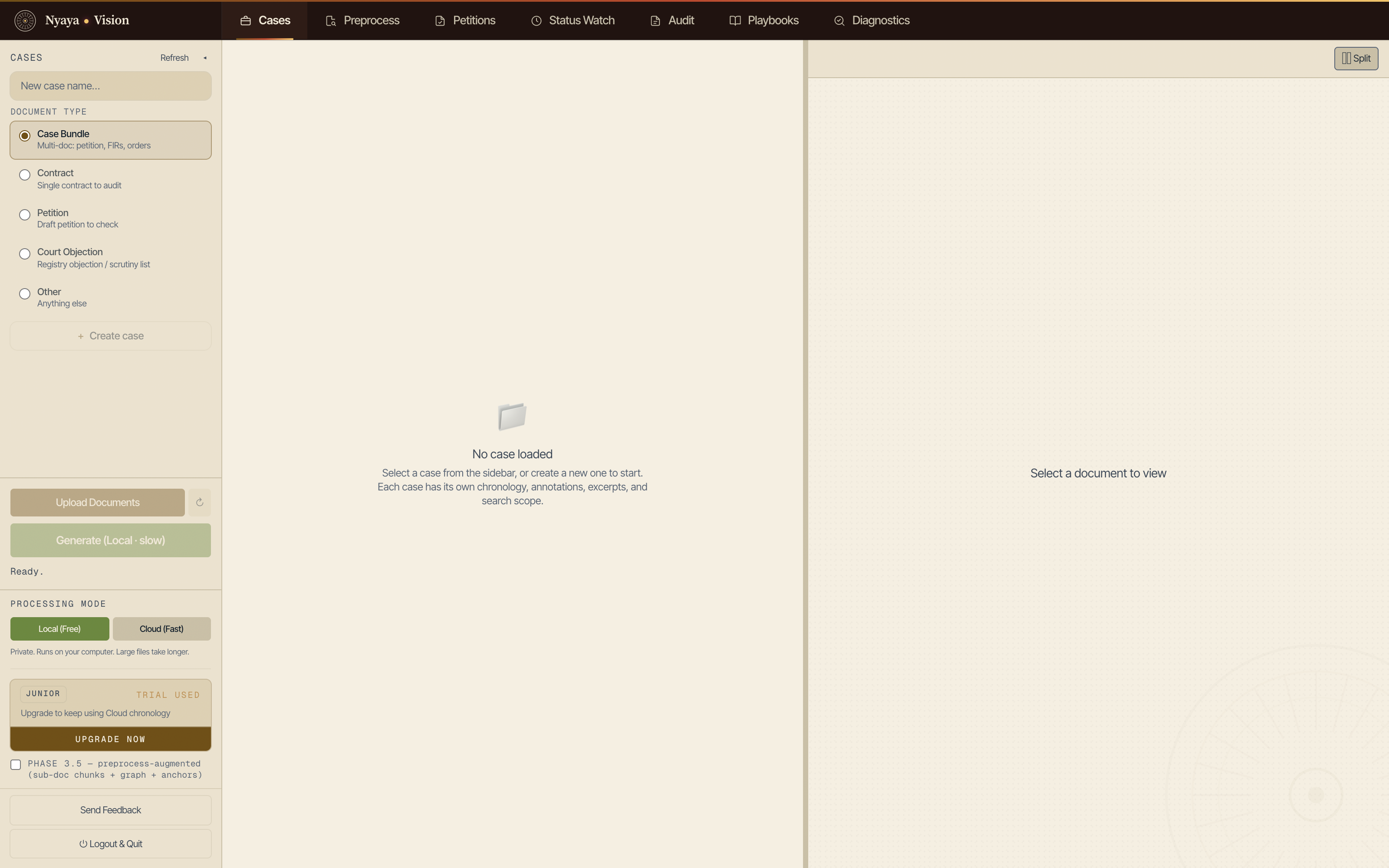
Open a case and hand it the brief
A case is the whole brief: plaint, written statement, notices, annexures, the last order. Upload PDFs, Word files or scans together; a zip of the full paperbook is fine.
Every page is read, scanned pages go through OCR, and the text is indexed so that everything which follows can point to a page number.
Step 2
Generate the List of Dates and Events
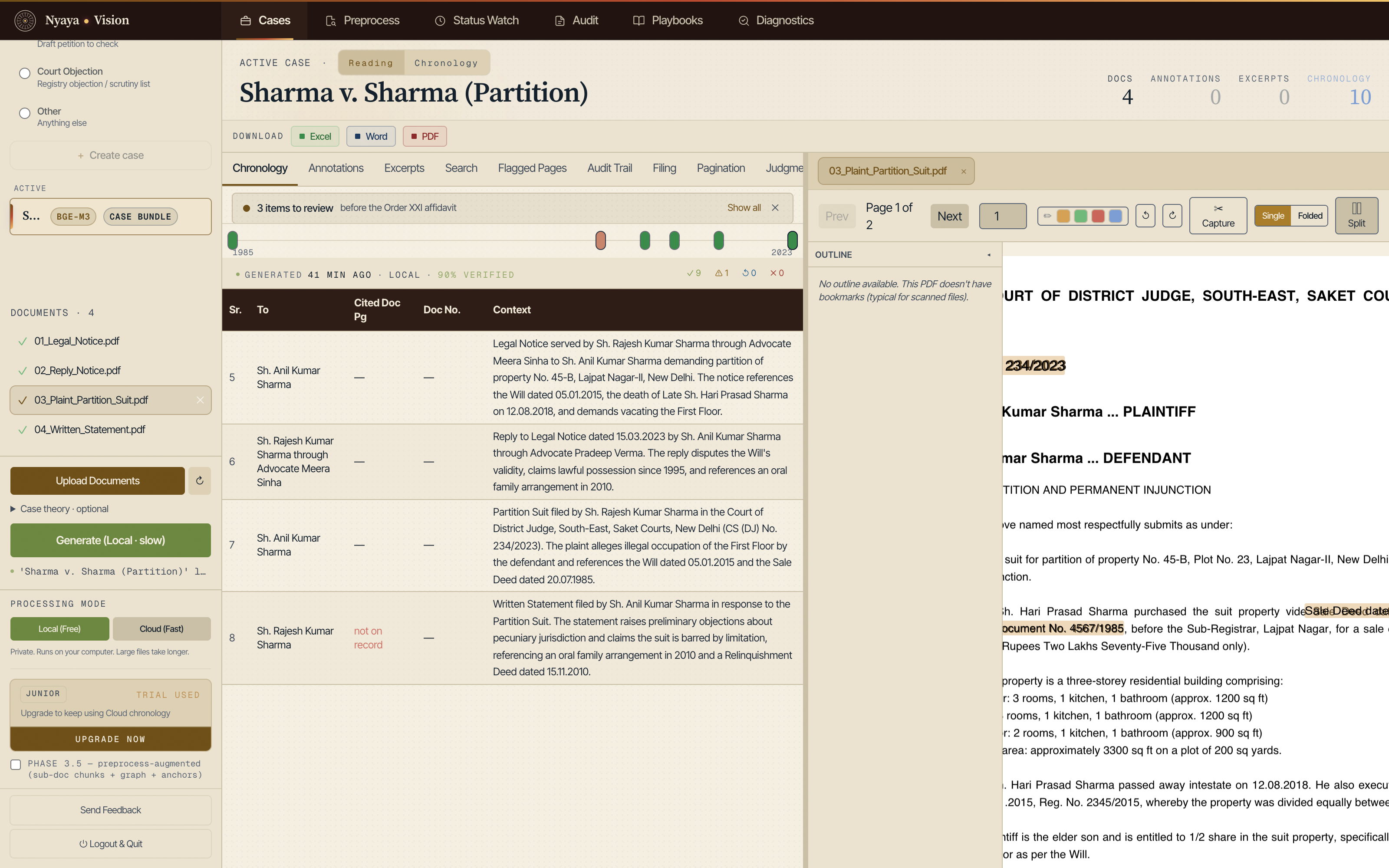
One click reads the bundle and produces the chronology the court expects: date, event, source document, page. Every row opens the paragraph it was drawn from in the viewer beside it.
Each event carries a mark. Verified means the operative words were found on the cited page. Unverified means the model paraphrased something the page does not say in those terms. Treat an unverified entry as a junior's note, not as a citation.
Step 3
Search the brief the way you would search your memory
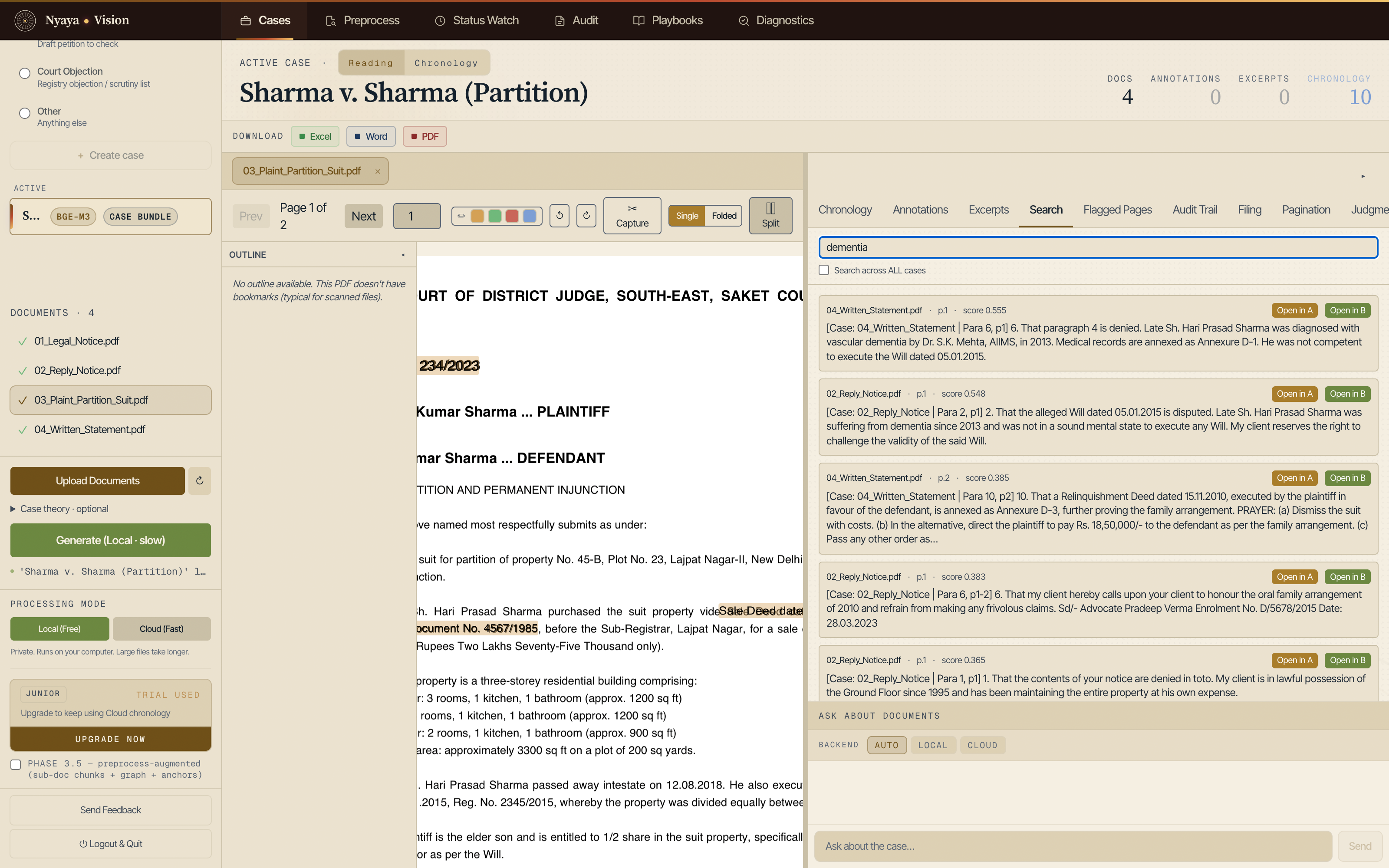
Type the word that matters, dementia, possession, limitation, and every passage in every document where it occurs is listed with its page. Any hit opens on either side of the split viewer.
Then put the question in plain English and get the answer with the document and page it rests on. If the answer is not in the brief, it says so, which is more than most summaries do.
Step 4
Mark the record as you read it
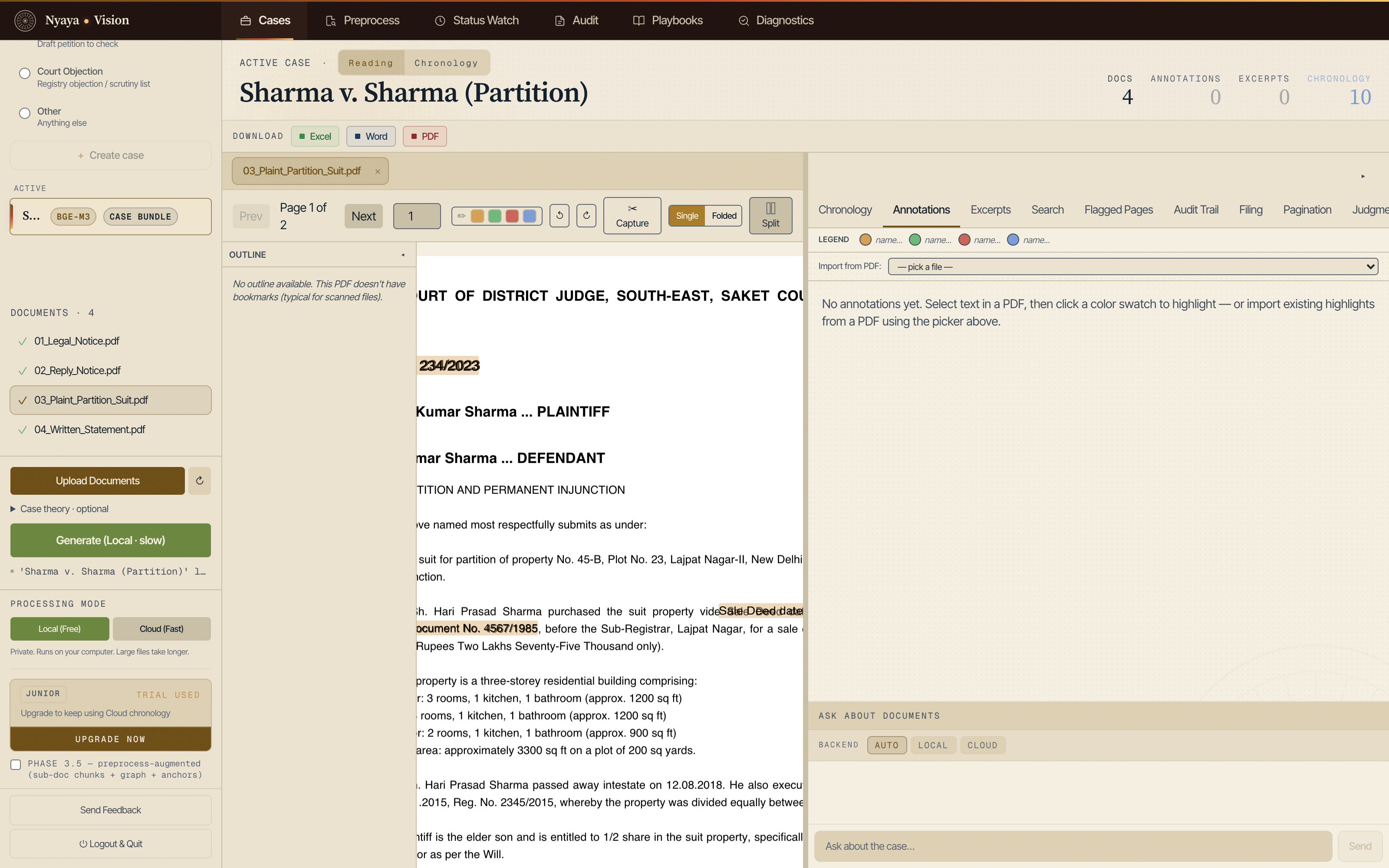
Four colours: note, important, contradiction, citation. Highlights made in the viewer, or imported from a PDF you marked up last week, sit in one list with their page references. Excerpts clip a passage to a stack for the synopsis.
Both travel with the export, so the Excel and Word files carry your reading and not only the machine's.
Step 5
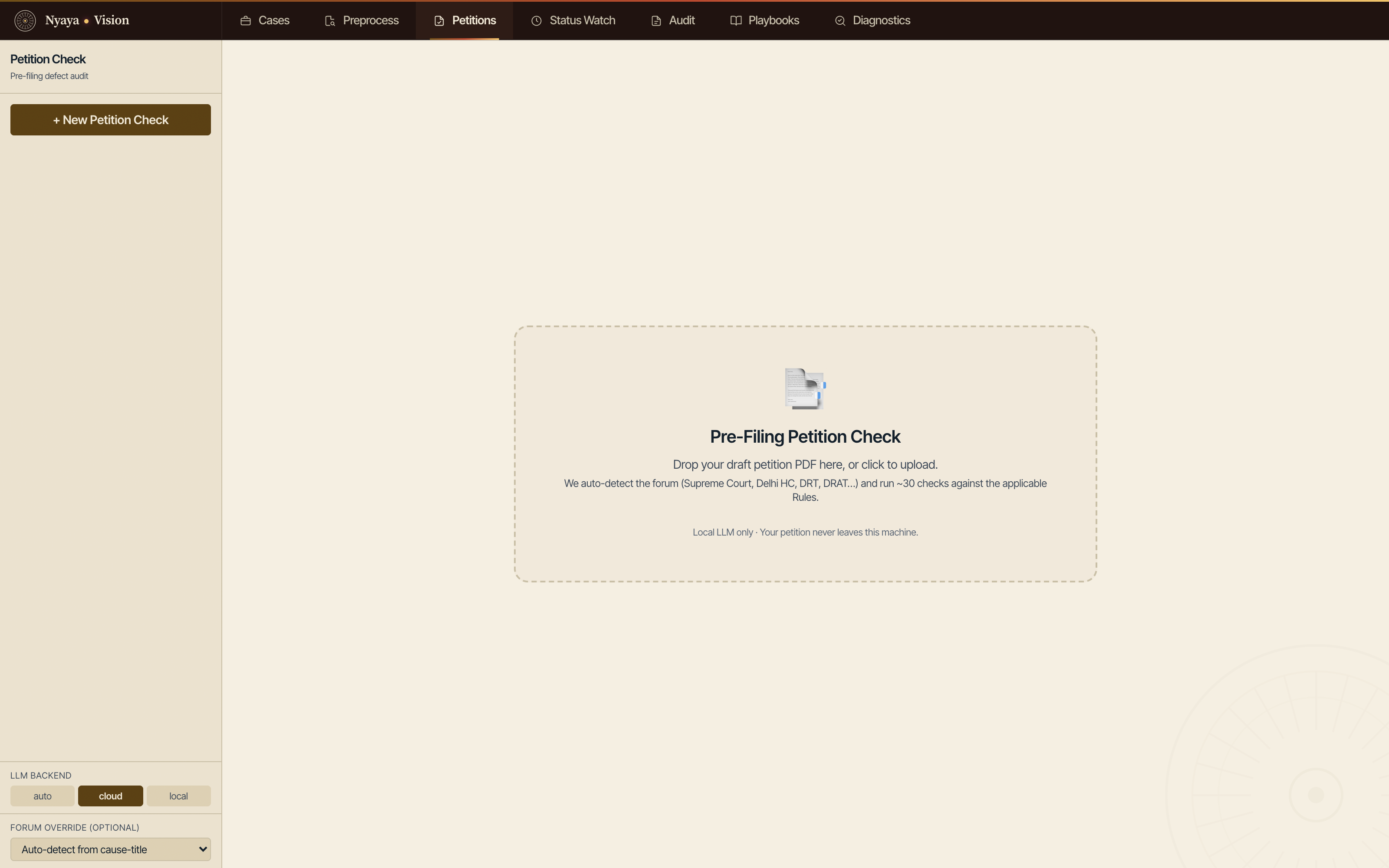
Check the petition before the Registry does
Drop the draft. The forum is read from the cause title and the draft is checked against the rules that apply there: verification affidavit, index and pagination, court fee memo, list of dates, prayer. Each defect is listed with the rule that makes it one, and graded by whether the petition would be returned or merely noted.
It runs on the local model only. The draft does not leave the machine.
Step 6
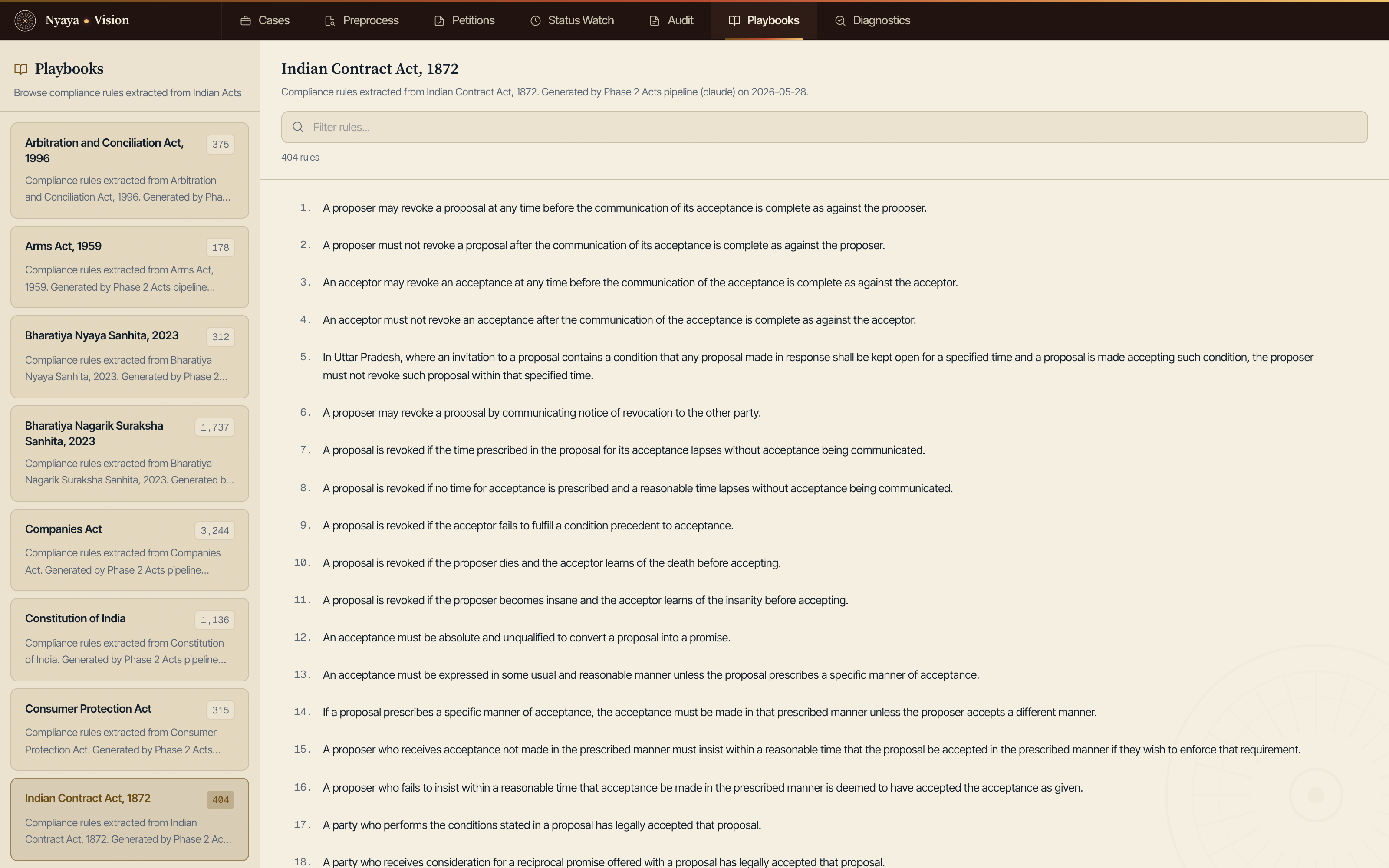
Read the rules the checks run on
Thirty-seven playbooks hold the rules, extracted from the statutes themselves and set out one to a line with the source. You can read exactly what a check tests for and why.
Contract audit runs the same playbooks against an agreement.
Step 7
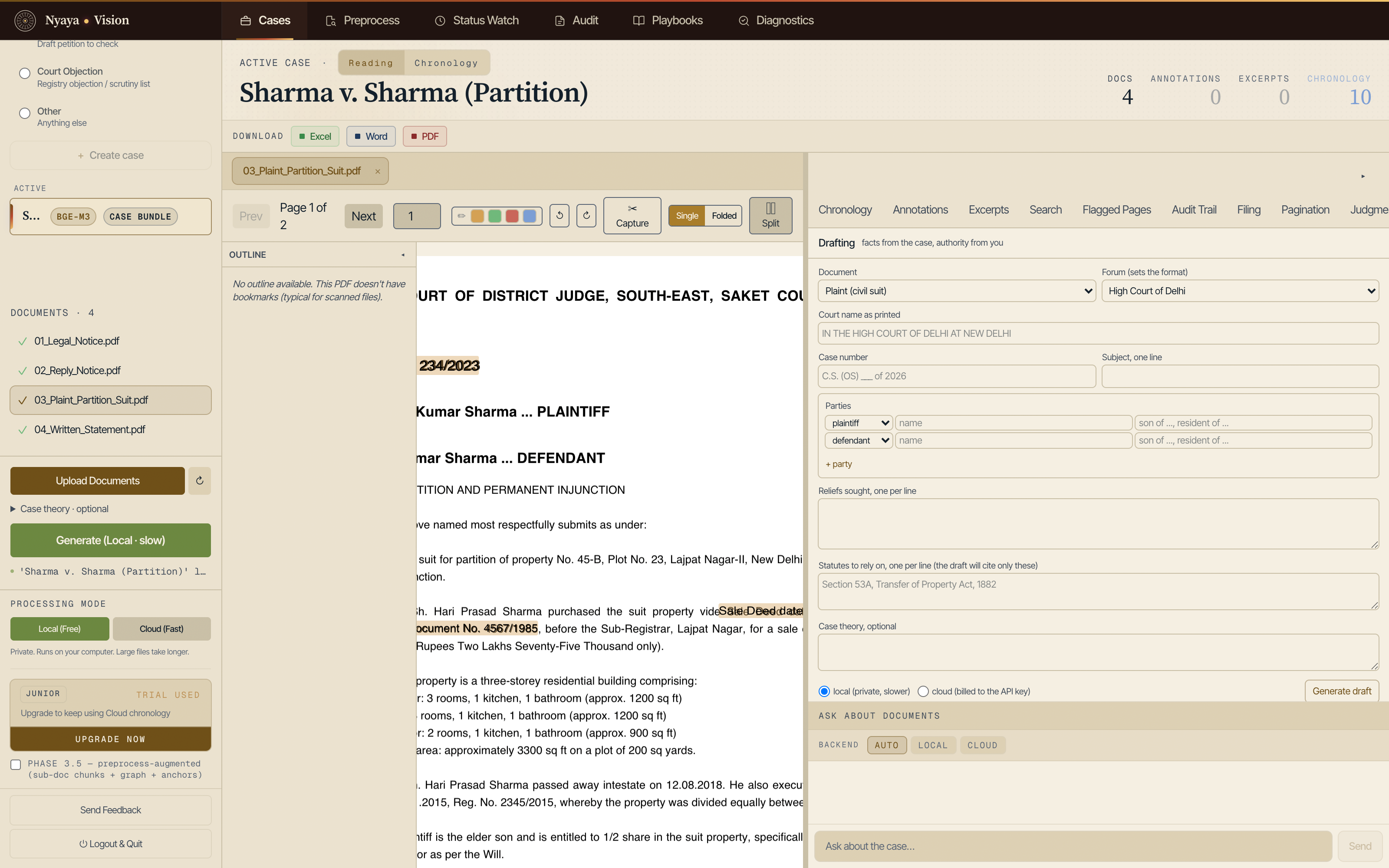
Draft from the record, not from memory
Drafting gives a first cut of a plaint, a reply, a synopsis or a conveyancing deed, built from what is in the case and from the statutes you list. It cites only what you tell it to cite.
Stamp duty comes from a table maintained by hand that records its source and the date it was checked. Where a state has not been verified, the draft says so rather than inventing a figure.
Step 8
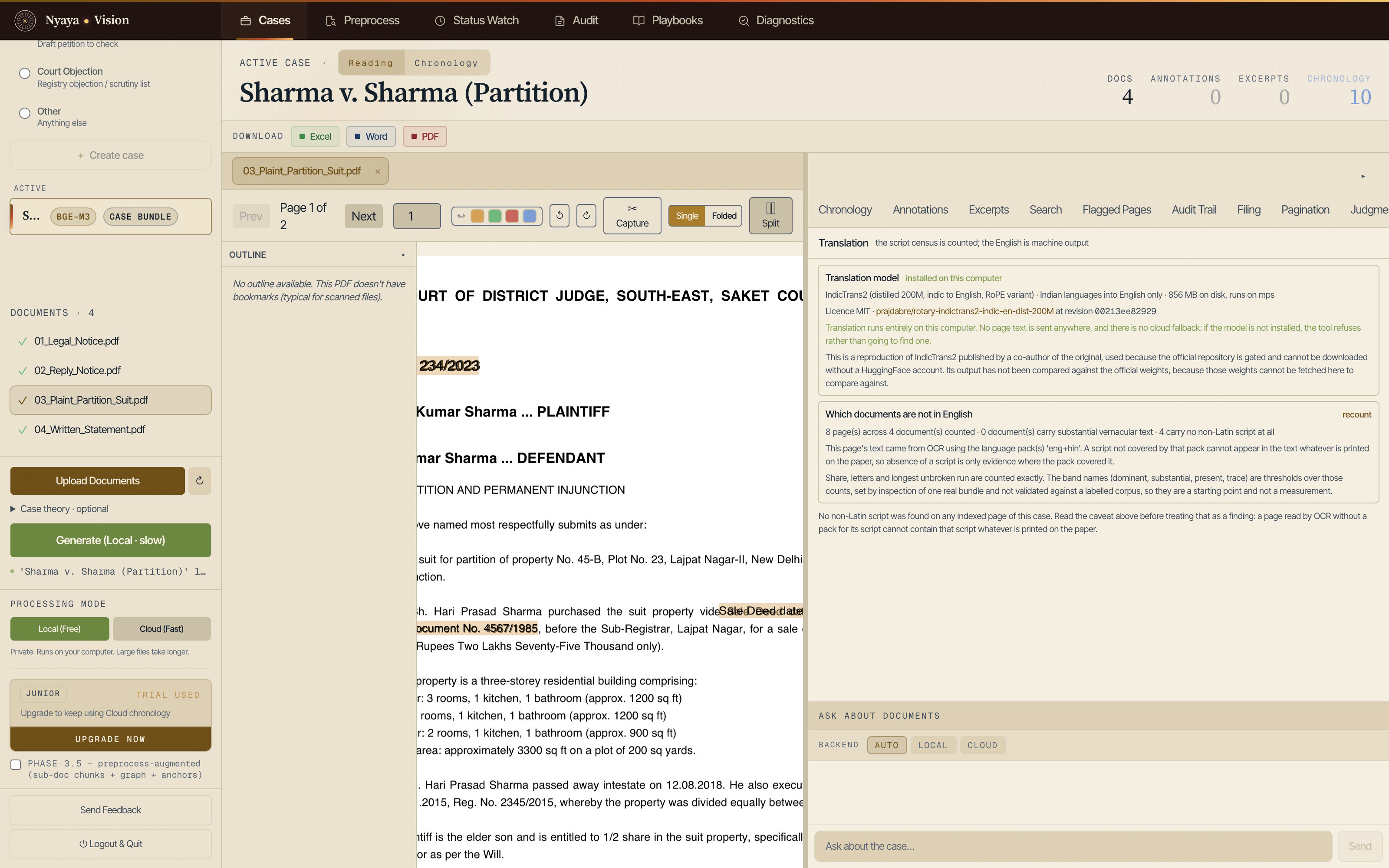
Translate the vernacular record
Documents in Hindi, Marathi and other Indian languages are translated on the machine into a bilingual worksheet, source beside English, paragraph by paragraph, with a blank certificate for the translator to sign.
The model is downloaded once; the tab shows which model, under which licence, at which revision. The Enterprise edition adds OCR (reading text from scanned pages) for Indian languages, so that scanned district-court records can be read at all.
Step 9
Keep the diary honest
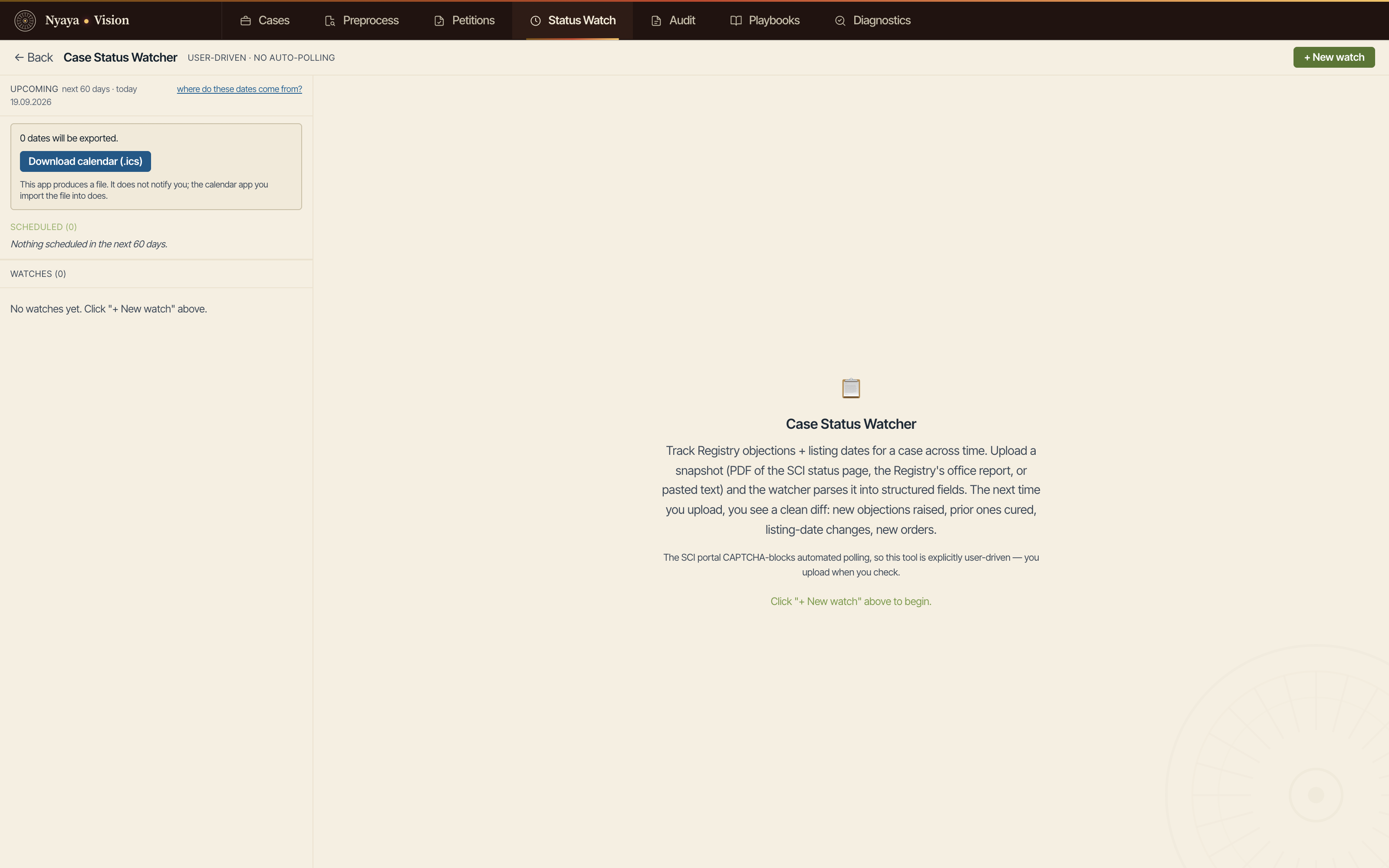
Case Status Watcher takes the status page or office report you upload, extracts objections and listing dates, and gives you a calendar file. A date is scheduled only if it appears verbatim on the uploaded page; anything else is marked unverified.
Each entry shows how old the upload was and goes stale after fourteen days, because the cause list is the record and this is not.
Step 10
File
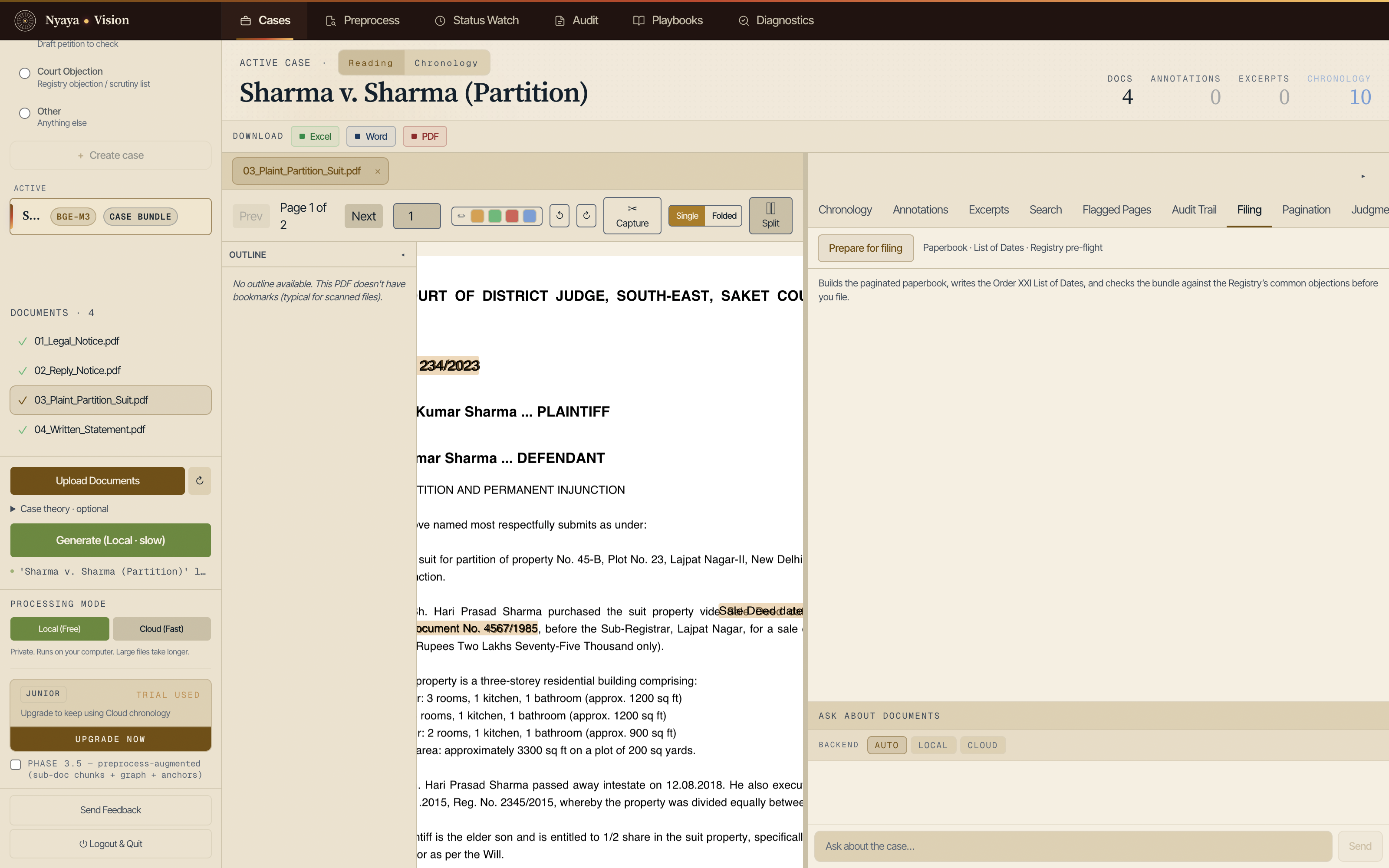
Prepare for filing builds the paginated paperbook, writes the Order XXI list of dates and checks the bundle against the Registry's usual objections. The chronology exports to Excel, Word and PDF with links back to the source pages, an audit trail of the run, and your annotations and excerpts appended.
The free edition places a small Generated with Nyaya-Vision mark on exports. Pro and Enterprise exports carry none.
Run it on a brief of your own.
The free edition does everything shown above, on your computer.
Download